Today, I’m going to share a comprehensive WordPress SEO tutorial for beginners.
In this guide, I’m going to cover.
- What is WordPress SEO?
- Why is SEO important?
- How to optimize a WordPress website for search engines?
Let’s dive right in…
What is WordPress SEO and Why Is It Important?
WordPress SEO is the practice of optimizing your WordPress website to improve your website’s organic visibility on search engines like Google.
SEO can help you drive targeted traffic to your website. You’ll get more traffic, leads, and sales.
Let’s see the benefits of SEO:
Increased visibility: When you optimize your WordPress website for SEO, more people will see it.
Consistent traffic: Your website will get more traffic without spending more money on paid ads.
Generate leads: When your website ranks for relevant keywords, you’ll get leads for your business.
The ROI of SEO is SOLID. Business owners get an average return of $22 for every dollar they spend on SEO.
1. Check Your Website’s Visibility
If you block search engines from crawling your website, your every SEO effort will be wasted.
You can’t afford to make this mistake.
WordPress has an option in the settings that discourages your website from being indexed on Google.
To check, log in to your website’s admin area. Then click on Settings > Reading.
Now you can see Search engine visibility. Make sure you untick the option “Discourage search engines from indexing this site.”
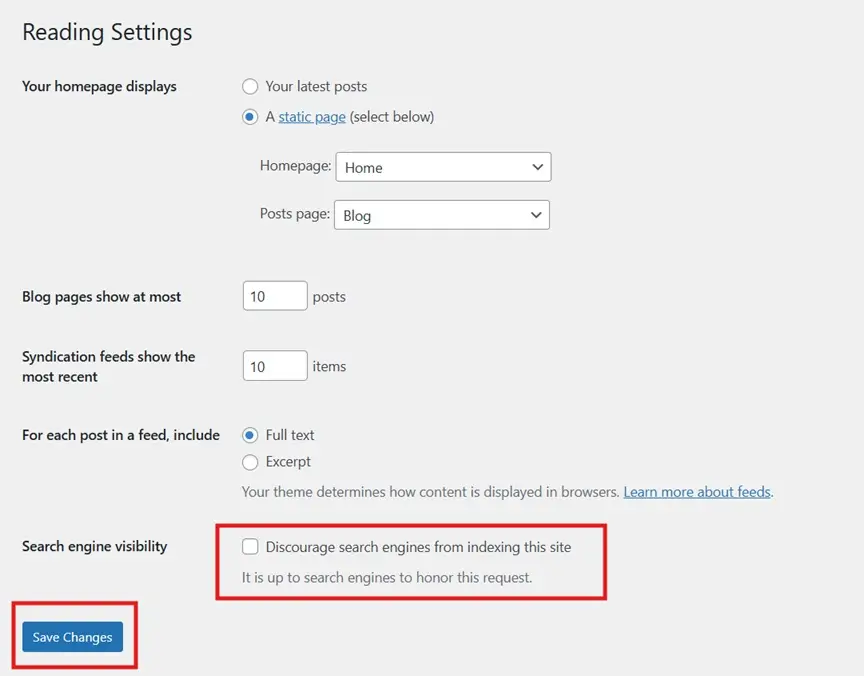
Click on Save Changes to save it.
Bingo! Now search engines can index your website.
2. Create Super Duper Content
Creating amazing content is non-negotiable.
And if you want to create amazing content, don’t use AI tools for writing.
Because these AI tools come up with what’s already there on the web. They take info from their pre-trained data and come up with something generic.
Here’s how you can create amazing content.
Google your target keyword and analyze the top 10 posts that are ranking to understand the search intent.
While analyzing the top results, ask yourself:
- What is missing?
- How can I add more value?
- Can I share a new angle?
- How can I make it more valuable to my audience?
- Can I share my experience?
Put yourself in your audience’s shoes while coming up with ideas and writing.
It’s time to create in-depth content. Your content should be:
- Unique
- Valuable
- Thorough
You can add data and statistics. If you have hands-on experience with something, don’t hesitate to share it.
People are going to connect with your content.
If you’re writing a topic you don’t have the expertise on, you can interview experts. You can use HARO or Qwoted.
It’s kind of borrowing expertise.
Read Also:
3. WWW vs. Non-WWW
Are you using the WWW or non-WWW version?
Search engines treat these as two different sites.
Ideally, you should use only ONE.
You can set it by visiting Settings > General.
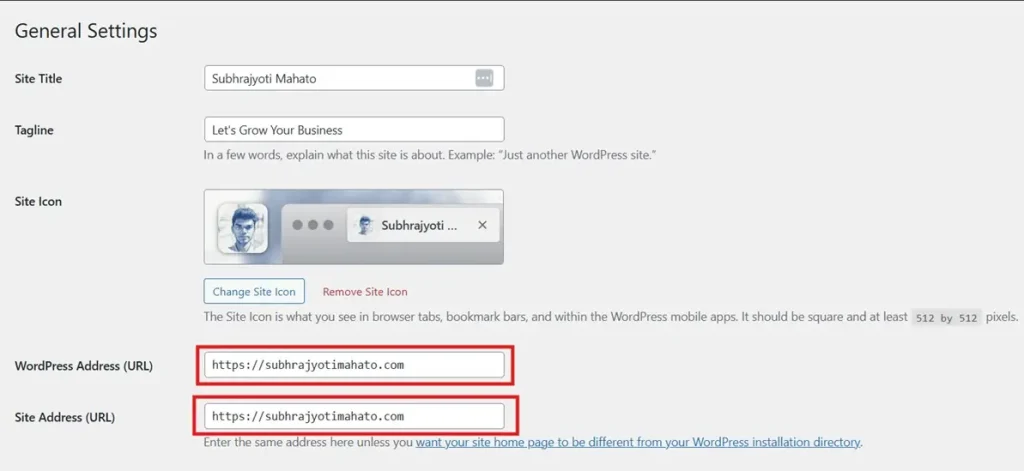
Now enter the preferred URL in both fields: WordPress Address (URL) and Site Address (URL).
Make sure you enter the same URL in both fields.
4. Install an SEO Plugin
If you’re doing WordPress SEO without an SEO plugin, you’re missing out. An SEO plugin lets you streamline your on-page SEO optimization.
Plus, it can help you create a sitemap, verify Google Search Console, set up redirections, and much more.
You can use any of these SEO plugins: 1. Yoast, 2. Rank Math, and 3. AIOSEO.
Rank Math offers more features on its free plan than Yoast SEO.
Click on Plugins>Add Plugin.
Search for Yoast, Rank Math, or All In One SEO. You can choose any.
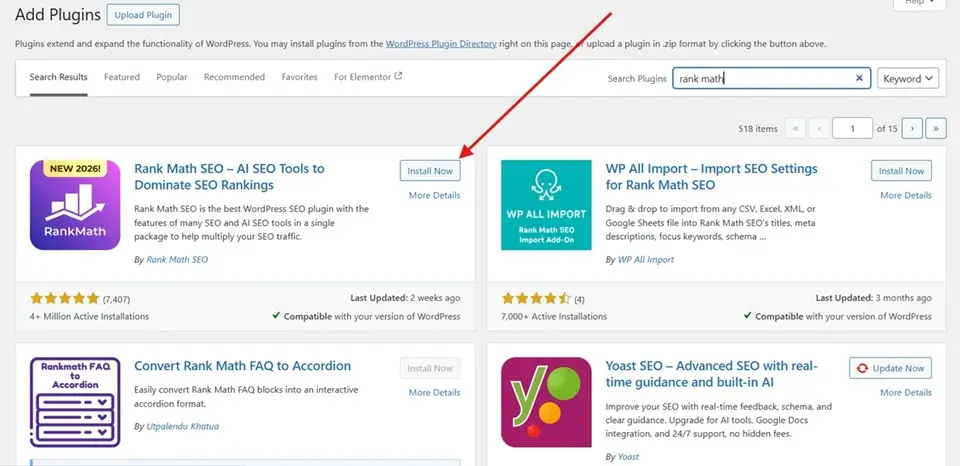
Once you have installed an SEO plugin on your website, you need to set it up.
5. Create an XML Sitemap and Submit It on Google Search Console
A sitemap is a file that includes every page of your site. It helps search engines like Google find pages of your website. Think of it like a blueprint of your website.
It’s super easy to create a sitemap using an SEO plugin.
Let me show you how you can create and submit it to Google Search Console.
I use the Yoast SEO plugin.
Go to your WordPress Dashboard and click on Yoast SEO.
Now, click on Settings. Scroll down, and you should see XML sitemaps under Technical SEO.
Next, click on “View the XML sitemap”.
You need to submit the sitemap to Google Search Console.
To submit the sitemap, head over to Google Search Console and verify your domain if you haven’t already.
Now, click Sitemaps and enter your sitemap URL.
Finally, click on SUBMIT.
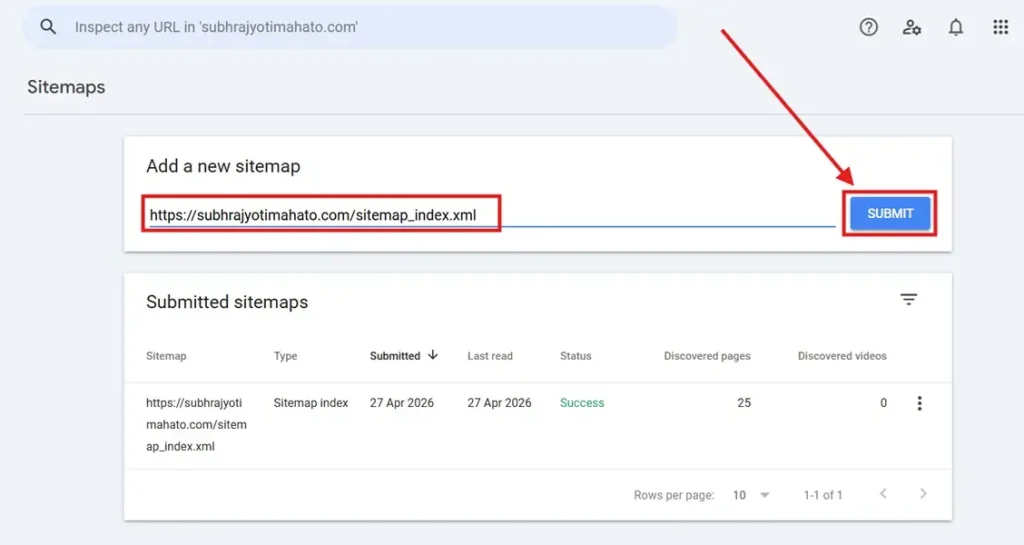
Hurry! You’ve created and submitted the sitemap to Google Search Console.
6. Choose High-Quality Website Hosting
When it comes to choosing web hosting providers, many people go with cheap options.
A website is your asset, and you need to treat it like an asset.
And choosing low-quality and cheap website hosting can lead to a lot of serious problems.
Your website might face issues like:
- Downtime: Cheap hosting providers frequently face downtime. This means users can’t access your website.
- Slow load time: Using cheap hosting can lead to slow load times. And everybody hates slow websites.
- Security vulnerabilities: A security breach can damage your website’s functionality, steal sensitive information, and destroy your credibility.
- Poor customer support: Cheap web hosting companies often have terrible customer service. When something goes wrong with your website, you could be waiting hours for a response.
You should have good-quality website hosting.
When you choose hosting, look for:
- Good Uptime – 99.99%
- Super-fast load time
- Great customer support 24/7
- Server location: Choose a server location close to your target audience
- Backups: Regular backups protect your website from data loss
If your website traffic is around 10k to 20k per month, go with Bluehost or Hostinger.
And if your website traffic is more than 20k per month. Plus, if you need less downtime, great performance, good security, and 24/7 customer support, go with WPX, Rocket, or Kinsta.
I use WPX web hosting.
7. Use a Good WordPress Theme
There are more than 30,000 WordPress themes that you can choose from.
Let me help you choose a theme for your WordPress website.
- Choose a responsive theme
- Go with an SEO-friendly WordPress theme
- It should load super fast
- If you have the budget, go for the premium version
- Check if the theme is easily customizable
- It should receive regular updates to ensure security and compatibility
Over the years, I’ve used many themes.
Here are some suggestions for you:
- Astra
- Sydney
- Kadence
- Hello
- Generatepress
- OceanWP
8. Optimize Your Website and Posts For SEO
You need to do on-page SEO to rank higher. An SEO plugin can guide you to optimize your web pages.
Here’s how you can do on-page SEO:
Tip #1: Use Your Target Keyword in the Intro
Make sure you add your focus keyword in the first 100-150 words of the page. Doing this will help Google understand which keyword you want to rank for.
I’ve been doing SEO for 7 years. And I’ve noticed it helps you rank higher.
Tip #2: Write and Optimize Title Tags
A title tag is a super important element of SEO.
Because it’s the first thing your users are going to notice. A title tag should catch their attention to convince them to click on your website.
Brian Dean said that a title is an important on-page SEO signal.
You can see how I write title tags.
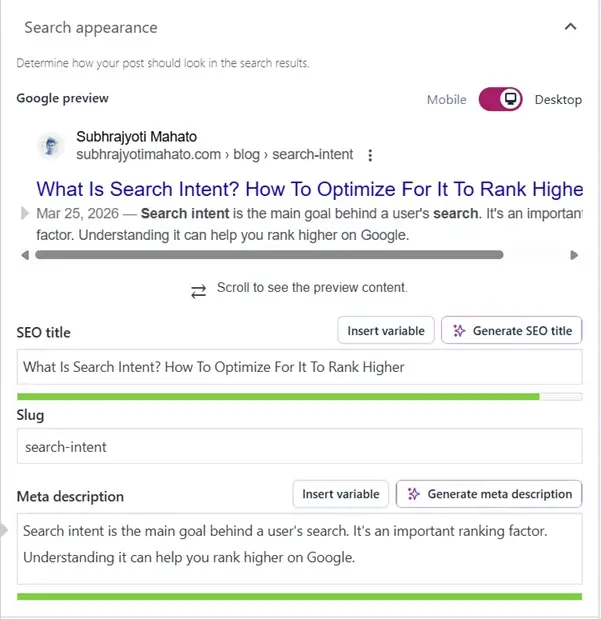
Here are some tips to write title tags:
- Keep it between 50-60 characters.
- Try to add the keyword at the beginning.
- Show the benefit.
Tip #3: Use an SEO-Friendly URL Structure
Creating an SEO-friendly URL helps search engines understand what your page is all about.
If you’re using WordPress, your default URL structure might not be SEO-friendly. You need to set up an SEO friendly SEO structure.
Here’s how you can change your permalink.
- Log in to your WordPress website.
- Click on the “Settings”.
- Now click on “Permalinks”.
- Here you have to select “Post Name”.
- Save it.
Tip #4: Add Keywords Throughout the Page
Add your main keyword in the first 100-150 words. You need to sprinkle relevant keywords throughout your content.
You should also include relevant keywords in the subheadings (H2).
It will help Google understand what your page is about.
Tip #5: Write Unique Meta Descriptions For Each Page
A meta description is a text that appears below the title tag on the SERP. You can use it to convince your users to click on your website.
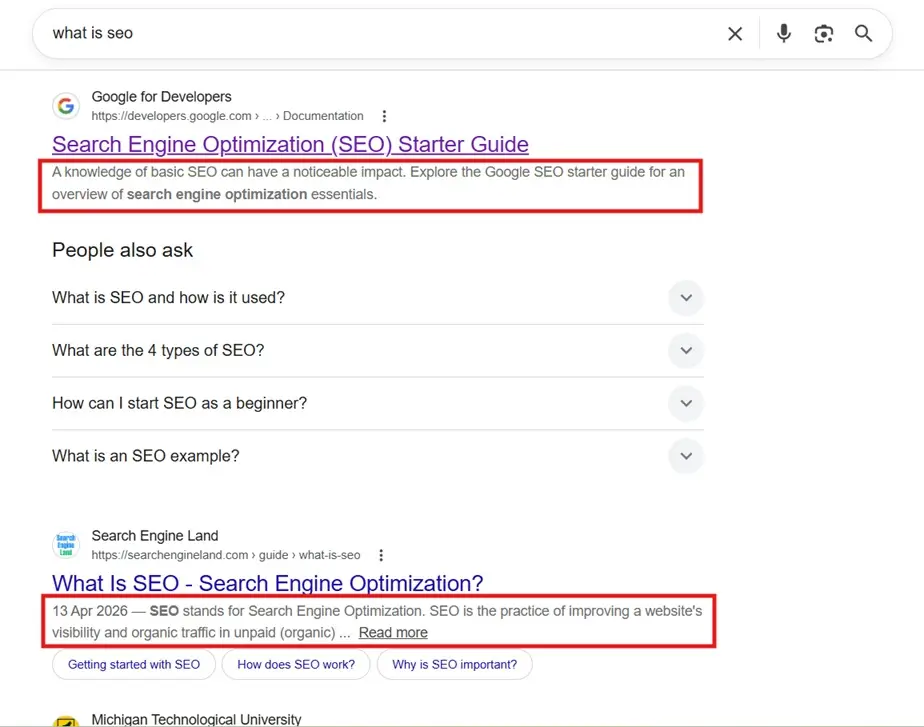
Write a unique meta description for each page. A well-crafted meta description can increase your click-through rate.
An SEO plugin can help you add a meta description.
Some tips to write better meta descriptions.
- Keep it under 160 characters
- Make sure it’s relevant
- Write a unique meta description for each page
- Include your keyword
Bonus Tip: Improve Readability
Now people are using smartphones to surf the web. And if you don’t focus on your readability, users will find it hard to read content on smartphones.
If your readers struggle to read the content on your website, chances are they will not come back to your website again.
If your website’s readability is good, people can easily read and digest your content. Users might keep coming back to your website.
Here’s how you can improve your readability:
- Read your copy aloud. If you find anything awkward, rewrite it
- Use subheadings to break up the text.
- Have enough white space.
- Use shorter sentences.
- Avoid technical jargon.
- Use active voice.
- Ask your colleague for feedback.
9. Have a Logical Site Structure
Having a good website structure improves user experience.
And it helps search engines understand your website better.
Would you enjoy shopping in a disorganized, messy store?
Probably not?
The same goes for your website as well.
Users are less likely to buy from a website that’s confusing and disorganized.
Make it clean and easy to navigate.
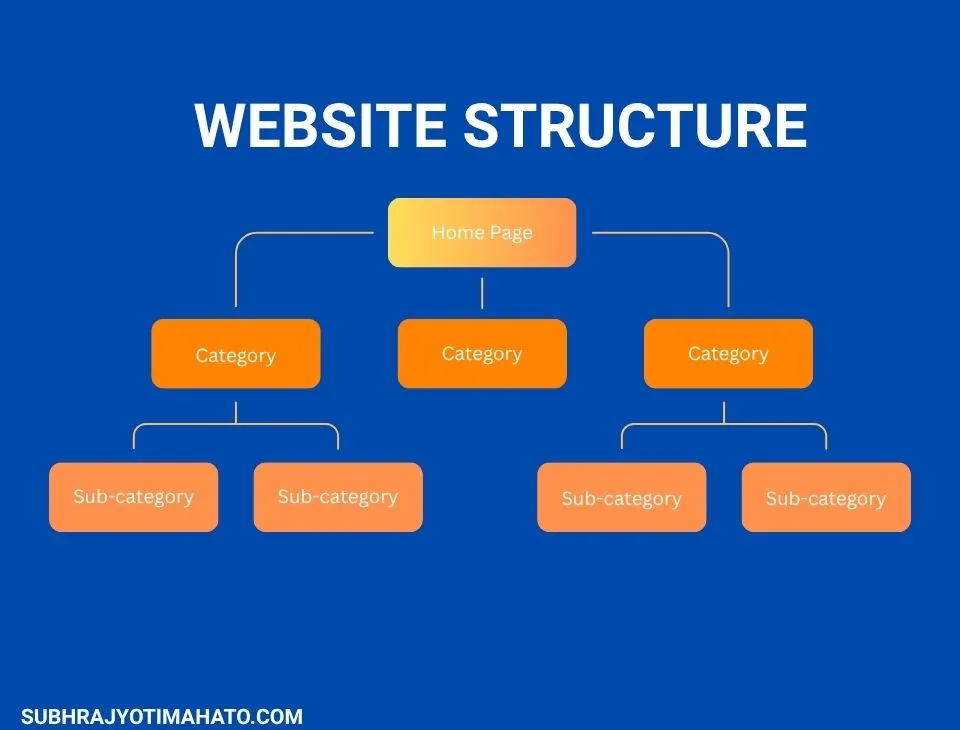
Your website should have a logical structure like this:
- Homepage
- Pages
- Category
- Sub-category
- Posts
10. Include Relevant Internal Links
An internal link is a link from one page to another on the same website. Internal links help search engines crawl, index your posts, and understand your content better.
It also helps users find your content.
Internal linking is an underrated SEO strategy. By linking your new posts to older, relevant content, you help Google understand the structure of your blog and pass authority between pages
Having a strategic internal linking strategy can help you boost your organic traffic.
Whenever you publish a new blog post, interlink your old posts. Then go back to your old posts and add new blog post links.
You should conduct an interlinking audit per month to make sure your relevant pages are interlinked.
Check out the free website authority checker.
11. Add Schema When it Makes Sense
A schema is a set of tags that you can add to your website’s code to provide search engines with more information about your content.
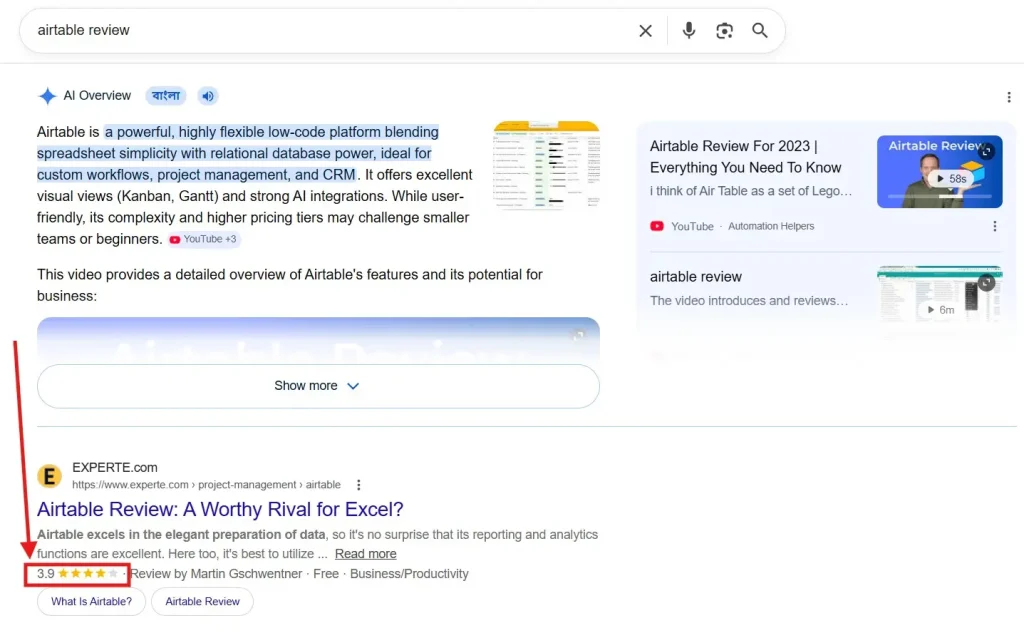
Schema helps Google and other search engines understand your content better. Adding schema markup can help you increase your organic click-through rate (CTR).
You don’t need to code to use the schema. You can use your SEO plugin to add schema.
Or you can install a dedicated schema plugin.
12. Speed Up Your WordPress Website
A Portent study found websites that load in one second see 300% more conversions than those taking 5 seconds.
Plus, Website page speed is a confirmed ranking factor. Google prioritizes fast-loading sites over slow-loading sites.
Here’s how you can speed up your WordPress website.
- Use high-quality web hosting. You can go with WPX, Rocket.net, or Kinsta.
- Choose a fast-loading theme.
- Use a caching plugin like W3 Cache. If you have the budget, go for WP Rocket.
- Use a Content Delivery Network (CDN) like Cloudflare.
- Uninstall unnecessary plugins.
- Install an image compressor plugin. You can use Short Pixel.
13. Optimize Your Images
Images, diagrams, screenshots, and infographics make blog posts more engaging and easier to understand.
Plus, visual content can make your content visually appealing.
But using images can affect your page speed.
You should optimize your images to improve user experience and speed up load time.
Here are WordPress image optimization tips:
- Use the right format – JPEG or WebP.
- Name your images. It should reflect the content of the image.
- Use descriptive ALT Text for your images.
- Compress your images. You can use Tiny PNG or Cloud Convert.
14. Use an SSL Certificate
SSL is an acronym for Secure Sockets Layer. It’s a technology that establishes a secure connection between your browser and the server.
You might have seen a padlock icon appear in your browser’s address bar. This means the site is using HTTPS. It’s the secure version of the HTTP protocol.
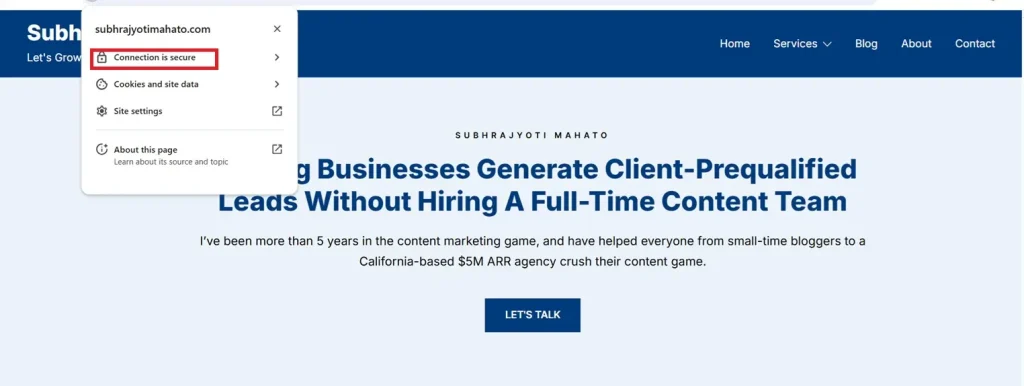
But why should you care about it?
Because Google uses HTTPS as a ranking signal.
Plus, it helps build trust with users.
Major domain registrars offer free SSL certificates with domain names.
You can use Cloudflare SSL. It’s FREE.
15. Set Up Google Search Console
Search Console is a free tool that Google provides to track SEO performance. It helps you to track, optimize, and improve your website’s SEO performance.
You need to set up Google Search Console to track SEO performance.
I recommend verifying Google Search Console at the domain level.
Here’s how you can do it:
Head over to Google Search Console.
Click on Add a property. Then click on Add a website.
Here you can see two verification methods. I recommend choosing the domain method.
Enter your domain and click on the Continue button. Just enter www.yourdomain.com.
Google Search Console will generate a TXT record to verify your domain.
Copy the TXT record.
Now go to your domain registrar and select your domain.
Navigate to the DNS section.
Select the TXT record and paste your TXT record.
Now save it.
Go back to Search Console and click on the VERIFY button.
It takes some time for the data to appear in Search Console.
16. Set Up Google Analytics
Google Analytics is a great tool for tracking and measuring your website’s overall performance.
It can help you track sessions, users, traffic sources, page views, bounce rate, etc.
There are multiple ways to set up Google Analytics. If you’re a WordPress user, you can use the Google SiteKit Plugin.
I prefer to set up Google Analytics using Google Tag Manager.
Here’s a video to help you.
FAQs
Yes. WordPress is one of the most SEO-friendly CMS. And installing an SEO plugin can help you optimize your web pages for search engines.
You shouldn’t obsess over keywords. You need to sprinkle relevant keywords throughout the blog post. Focus on creating amazing content.
If you want to optimize your pages for SEO, an SEO plugin can help a lot. If you write blog posts regularly, you should have an SEO plugin.
Conclusion
This is my WordPress SEO tutorial for beginners. I hope this guide will help you to optimize your WordPress website.
SEO is a long-term game. It will take time to see some results. You need to keep working consistently.
If you’ve any questions, comment down below.